Unless you've been stuck on a desert island for the last six months, you know that the big buzz is the impending release of Windows 7 and its partner, Windows Server 2008 R2.
Now, I'm a guy who hates change in the desktop. I always turn on the classic view and still run Windows XP on my laptop. I don't like having to re-learn where things are and how to do common tasks.
But with Windows 7, it was love at first byte. I've been running Windows 7 since March, and I can't wait for the official release next month. Of course, there are a few drawbacks to the new operating system, and I even have my doubts about some its most touted features. So, here are my top 10 reasons why you should move to Windows 7 -- and a few notes of caution.
1. Resistance Is Futile!
It's sad but true. Unless you want to pay exorbitant extended support fees for software that's out of the mainline support window, you have to upgrade. Typically, you have an automatic upgrade if you have a PC-refresh cycle every three years or so, so that will take care of your Windows 7 move. The graphic in Figure 1 shows my Windows 7 and Windows Server 2008 R2 upgrade roadmap.
Microsoft hopes IT shops will move to its latest server along with the latest client. The last time Microsoft released a big server Service Pack (SP) was for Windows Server 2003 R2, but that was really just a set of new options: SharePoint, Distributed File System Replication (DFSR), services for Unix and other features that had no bearing on the OS. The OS had the same binaries and the same SP requirements, and you didn't have to upgrade to R2 to get to Windows Server 2008. By contrast, Windows Server 2008 R2 is a whole new OS, using the Windows 7 code tree. It includes new binaries and new SPs. In addition, it will only run on x64 servers, and currently there's no upgrade path, even from Windows Server 2008.
Given the new features of Windows 7 and its counterpart Windows Server 2008 R2, you may want to consider an upgrade sooner than what your normal refresh cycle would offer.
2. Upgrades Made Easy
The "no upgrade from XP" statement is a little frightening for those who gave up on Windows Vista and went back to XP. Now you have to deal with moving user data from XP to Windows 7. As Figure 1 shows, you can upgrade from Vista SP1 to Windows 7, or you can use the User State Migration Tool (USMT) from the Windows Automated Installation Kit to "migrate" to Windows 7. There are a couple of important points here. While you can't upgrade from XP, the installation allows you to keep an older version -- either XP or Vista -- of Windows. This means that after the dust settles, you'll have:

- Your old Windows directory. This contains the old Documents and Settings folder, Program Files folder and the Windows folder from the XP installation. You can move the files and folders, which are saved in the Windows 7 installation, from XP to the new Windows 7 locations manually, or with the USMT. Note that user profiles are now in the C:\Users directory; there's no more Documents and Settings directory. There are some excellent articles and webcasts at microsoft.com/springboard that show how to move files with very simple scripting.
- Original data directories, which remain intact.
3. Networking Enhancements
This may be the thing that pushes you to Windows 7. DirectAccess (DA) is a nearly invisible virtual private network (VPN) connection that's created as needed. Suppose you're at a hotel with no VPN connection to your company intranet, and you have an e-mail asking you to review a document on the corporate intranet. With DA, when you click on the link, DA makes the connection to the intranet, you do your work and close the browser, and the connection is gone.
DA will allow a client to connect to the Internet, company intranet and a local network (this is known as split tunneling). The goal is to make the remote user experience the same as that of a user in the corporate office.
It's pretty cool how this is accomplished using Domain Name System (DNS) and the Name Resolution Policy Table (NRPT), as shown in Figure 2. This works much like the DNS conditional forwarding in Windows 2003. In addition to the DNS definitions in the TCP/IP properties on each client, there's the NRPT. In the NRPT, you define a Fully Qualified Domain Name of your intranet -- for example, contoso.com -- and associate it with the IP address of a DNS server resolvable from the Internet. So, when I go to whatever.contoso.com, it takes the shortcut to the company DNS server and gets resolved, and away we go. If I want to go to microsoft.com and there's no definition, then it goes through the normal DNS resolver table as we do today.
The downside of DA is that it will only work on Windows 7 clients that connect to Windows Server 2008 R2 servers. One large, global company told me that DA is its solution to a host of remote access problems, and that the company is adopting it immediately.
The DA Early Adopter's Guide, which you can download here, has a lot of good, in-depth details on how this works and how to set it up.
4. BranchCache
BranchCache is usually mentioned with DA as a crown jewel of Windows Server 2008 R2 and Windows 7. However, I'm not so enthused about BranchCache. The basic premise is to cache documents obtained from the corporate site file servers locally on client computers. Then, when another user in that site wants the same document, they obtain it from the other client's cache. This is called Distributed Cache Mode.
You can add a caching server in the remote site so that the documents are cached on it rather than on a user's workstation. This is called Hosted Cache Mode. The client always contacts the file server at the hub site, and if the local copy is not available, the client gets a copy from the file server. Maybe I'm all wrong, but here are the problems I see with BranchCache:
- Distributed Cache Mode turns every client into a server. While you can limit the disk space used, it can slow down a user's workstation.
- How does it deal with write lock and versioning? That is, if I cache a document on my computer -- a copy -- and Joe, in another site, goes to the file server and gets another copy of the document and caches it, whose changes get saved? Do you end up with multiple versions? I haven't seen any detail on how this is handled. Maybe Microsoft has taken care of it, but you should look into this. (As of this writing, Microsoft has not updated me on this issue despite requests for information.) I see no advantage of Hosted Cache Mode over Distributed File System (DFS). If I were going to put a file server in a remote site, I'd implement DFS, replicate it to the hub site and back it up. Hosted Cache Mode seems like a poor man's DFS.

5. VHD Features
Microsoft is really pushing virtual hard disk (VHD) for a variety of solutions, including backup. Windows 7 and Windows Server 2008 R2 allow users to:
- Create a VHD. This can then be activated, mounted, assigned a drive letter and formatted in Disk Manager. It's very simple to back up a single VHD.
- View an existing VHD. This allows you to open a VHD and view and manipulate the contents.
- Boot from a VHD. You can actually build a Windows 7 image in a VHD. You can store it on a large USB drive and boot the client from the USB. This is handy for recovery from a crash as well as for training labs.
6. Improved Performance
My first impression of Windows 7 was its incredible performance boost -- and I've heard similar reports from others. After installing flawlessly on my three-year-old Compaq nc6220 laptop, I immediately noticed a much faster boot time. Internet Explorer 8 was also blazingly fast. This was the same old laptop, the same Internet connection from home, the same everything -- except with Windows 7 and IE8.
Windows 7 uses Vista drivers, so there should be few hardware-compatibility issues. I subscribe to my company's internal Windows 7 discussion forum, and the overwhelming opinion is that everything works. Obviously, there are issues with specific apps, such as remote access connections, but our internal remote access connection, after some work and massage by IT, works just fine.
7. PowerShell
Windows 7 and Windows Server 2008 R2 both come with Windows PowerShell version 2.0, although R2 still requires it to be installed as a feature. PowerShell is not a compelling reason on its own to justify a migration, but the new version has some intriguing advantages. With nearly 250 new cmdlets, including many for Active Directory functions, IT professionals will find new power in PowerShell version 2.0. A large number of AD functions can be performed with single cmdlets, making it easier for managers without PowerShell experience to be productive.
In addition to the AD cmdlets, the WS-Management function allows commands or PowerShell scripts to be executed remotely on other computers. These can be executed on either a single computer or multiple computers, and are executed in the background of those computers so the user is unaware of the action. Now, instead of bothering users and disrupting their work for IT staff to make a remote connection, PowerShell commands can be executed without interruption. Multi-line comments and new search features are among other version 2.0 additions.
The only unfortunate thing is that, when executing operations in GUIs, the equivalent PowerShell command is not exposed. For instance, in Exchange 2007, if I create a user in the Exchange System Manager, at the end it displays the PowerShell command that's actually used to create that user. I can save that to a text file and then use it as an example to do similar functions. This is nice if you're trying to figure out a PowerShell command or function and can't get the syntax correct: just perform the operation in the UI, and the PowerShell command is produced for you. However, this is not available in Windows Server 2008 R2.
Note: You can download and install PowerShell version 2.0 on XP, Vista and Windows Server 2003, but you'll also need .NET Framework 2.0 -- or 3.5.1, if you use the PowerShell Integrated Scripting Environment -- along with WinRM 2.0 for WS-Management.
8. Virtual Desktop Infrastructure
Virtual Desktop Infrastructure (VDI) is a relatively new term for a somewhat mature technology. While server virtualization is all the rage, desktop virtualization is just getting a good foothold in many corporations. The old Microsoft Terminal Services, which really came into its own during the Windows 2000 days, is a good example of one VDI method. That is, a single server hosts applications that users run remotely rather than having them installed locally.
This was a bit messy because the user had a Terminal Services window to navigate, similar to a Remote Desktop Protocol (RDP) session. Newer technology allows a single application icon to appear on the user's local desktop for the remote application, giving the user a more uniform experience. Other VDI options include a virtual workstation where hardware such as special-purpose blade enclosures host the physical workstations in a secure data center and users connect to them with a thin client, although this method is not yet as popular as the others.
The VDI in Windows Server 2008 R2 and Windows 7 ties the various remote desktop and virtual desktop features together in a more integrated fashion for presentation to the user. Microsoft has also decided to rename the whole Terminal Services suite to "Remote Desktop Services."
I've actually seen a lot of hands go up when I've asked how many people in my sessions are virtualizing desktops, so it seems to be gaining popularity. The VDI improvements in R2 include an improved look and feel for the user, which helps erase the remote versus local app boundary. The new Remote App and Desktop Connection feature provides a control panel for managers to easily deliver remote apps or desktops to Windows 7 users.
For some excellent technical details about Remote Desktop Services with Windows Server 2008 R2, click here.
9. GUI Goodies
This is the fun stuff about Windows 7. These are the killer features that make me want to upgrade all my personal workstations to the new OS. They're impossible to apply a monetary value to, but users will love them. Many of these are holdovers from Vista, but there are some sweet tweaks and additions. Note that the Aero features require at least 256MB video RAM.
- User Account Control (UAC): Microsoft has provided two additional options for UAC. So now, the options are:
- Never notify me
- Don't notify me when I make changes to Windows settings (don't dim the desktop)
- Notify me only when programs try to make changes to my computer [the default]
- Always notify me
- Aero Snap (new feature): This is my favorite. Grab the title bar of a window and drag it to the side of the screen. When the cursor hits the screen edge on the right side of the display, the window stretches to occupy the right side of the screen, and vice versa for the left side. This is very handy for side-by-side comparisons. Drag it to the top of the screen, and it maximizes it. Grab it and move it in any direction, and it snaps back to the original size.
- Aero Peek (new feature): Click the show-desktop icon, now a vertical bar at the right side of the notification area on the task bar, and it hides the windows, but shows an outline of them.
- Aero Shake (new feature): This is another favorite, not a nervous condition. Microsoft says users typically have five to 15 windows open at a time. I'm probably on the high end of that scale. So to help windows litterbugs, the Aero Shake was created. Grab the title bar of any active window and jiggle it back and forth a couple of times. All the other windows will disappear by minimizing. Shake it again and they all reappear.
- Alt-Tab: This feature shows a preview of the app, not just the name.
- Recently used list: There's no more Documents list in the Start menu for recently used docs. Now, each app maintains its own list. So I see all the recent Word docs in the Word app on the task bar, all the Excel docs in the Excel icon on the task bar, and so on. This provides a lot more recent docs to be listed. Note that third-party apps must use Microsoft-provided APIs to show their recently used lists.
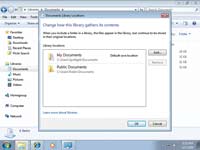
- Libraries (new feature): This is a new feature in Windows Explorer. Now there's a Libraries folder that includes subfolders called documents, music, pictures and videos. If you have 500 documents in 100 different directories, it's challenging to find them all. But they'll all be in the Documents library, so you don't have to search.
- Customizable Task bar and notification area (new feature): Finally, we have control over the Task bar and notification area. You can move icons to different positions on the Task bar and add or remove icons in the notification area.
- User Profiles: Don't forget the moving of user profiles to the C:\Users directory, eliminating the Documents and Settings directory and making profile data much easier to find.
10. BitLocker To Go
Windows 7 moves BitLocker to a more personal level by protecting USB "jump" drives. Insert a USB drive and right-click on that drive's icon in Explorer. Then, choose Turn on Bit Locker. It will encrypt the drive and ask you to specify a password. While you need Windows 7 to encrypt the USB drive, you can insert it in any Vista or XP computer, enter the password and get access to the drive. You can also choose to enter your smart card to protect the drive. This is handy for protecting sensitive data on a medium that's not typically secure.
Impressive Package
Well, there you have it. As one of those naysayers who never did upgrade to Vista, I'm impressed with Windows 7, based not on published hype but on my own experience. There are a lot of very good features that can produce cost savings and a lot of intangibles that will make your users happy.